
Credit-Based Lead Routing: Send Every Lead to the Offer They Can Actually Afford
What Credit-Based Lead Routing Is
Credit-based lead routing means one form behaves differently for every person who fills it out. When a lead submits their name, email, and phone, SmartForm can run a soft-inquiry financial check and then decide what happens next — open your calendar, send them to a different offer, show a specific message, or hold back availability.
The pain it removes is simple: you stop paying for calls with people who were never able to buy, and you stop losing people who could buy but got shown the wrong thing. The result is a funnel where sales time goes to leads who qualify, and unqualified traffic still gets a next step instead of a dead end.
Quick path: Widgets → select your widget → Widget Setup → Go to Smart Routing → Add Rule → set conditions and the action → save
The Problem With One Funnel for Every Lead
Most lead-gen funnels are built for an average visitor who does not exist. One form, one calendar, one thank-you page.
That creates two expensive failures at once:
- Unqualified leads reach your calendar. Your team burns 30-minute slots on people who cannot get approved, and your show rate and close rate both look worse than your offer deserves.
- Qualified leads get treated like everyone else. A lead with strong available credit sees the same generic booking page as someone with none, so nothing about the experience reflects what they can actually do.
Adding a manual qualification step usually makes it worse. Every extra question, screening call, or "we'll get back to you" email is another place to lose the person who was ready.
Credit-based routing moves that decision to the moment of submission, before anyone leaves the page.
How the Form Flips in Real Time
The flip happens server-side, in this order:
- The lead completes the SmartForm fields and submits.
- The submission is saved, so the lead exists in your account whatever happens next.
- If X-Ray Vision is active, a soft inquiry runs and returns financial data for that person.
- Smart Routing evaluates your rules in order against the returned data and the form answers.
- The first matching rule decides the action, and the widget carries it out immediately.
Because this runs after the lead is saved, a failed or unmatched check never costs you the lead — it falls through to whatever default action you configured.

Each rule pairs conditions with the action that runs when they match. Rules are evaluated top to bottom and the first match wins.
What Data Drives the Decision
Credit conditions require X-Ray Vision. Turning Smart Routing on enables and locks X-Ray until you turn Smart Routing off, because the rules cannot evaluate financial conditions without it.
A successful X-Ray match gives your conditions these fields to compare against, using the exact names in the rule builder.
Numeric fields — compare with is greater than, is less than, or is between:
- Credit Score
- Spendable Credit
- DTI Ratio
- Income
- Income – Household
- Assets – Investable
- Assets – Retirement
Outcome fields — compare with equals or contains:
- Offer Status — the explicit result, typically Approved or Declined
- Offer Name — which offer program matched
- Offer Details — the descriptive result text
- Credit Freeze — Yes when the lead's credit file is frozen
The outcome fields are worth planning around, because they answer questions a score cannot. A lead can be declined for reasons that have nothing to do with capacity, and a frozen credit file is not a rejection at all — it is a lead who needs to unfreeze their file and come back. Routing those two cases identically wastes a real prospect.
Every field also supports is not available, which is how you catch a lead whose pull returned nothing. That lets you treat "no data" as its own path rather than letting it fall through by accident.
Rules can also use the answers typed into your form, so you can combine intent with capacity — someone who selected a specific service and has the spendable credit for it.
Availability note: the exact fields returned depend on what the credit data contains for that person. Asset fields in particular are frequently unavailable, so treat them as a bonus signal and never as the backbone of your routing.
X-Ray runs as a soft inquiry, which does not affect the lead's credit score the way a hard pull does. For what a successful pull contains, see X-Ray Report Data and Report Details.
What a Rule Can Actually Do
Each rule pairs its conditions with one action, chosen from this list:
Action | What the lead experiences |
|---|---|
Redirect to URL | Sent straight to a different offer, VSL, or application page |
Show custom message | Stays on the page and reads your copy instead of booking |
Open calendar | The booking step opens, optionally on a specific booking widget |
Allow double booking | A high-value lead can take a slot that is already claimed |
Block calendar availability | Booking is withheld for that lead |
A redirect can carry the lead's own form data forward as query parameters, so the page they land on already knows who they are instead of asking twice.
Booking rules add an After booking step, which decides whether the lead sees a confirmation message or gets redirected once the slot is held. Where a rule opens a calendar, you can also point it at a specific team rather than the general pool.
Rules run in order and the first match wins, so keep conditions clearly separated. A broad rule sitting above a narrow one will quietly absorb the leads the narrow rule was written for.
See Offer Status Routing Live
These recordings are real production submissions against an Offer Status rule — same form, two different outcomes.
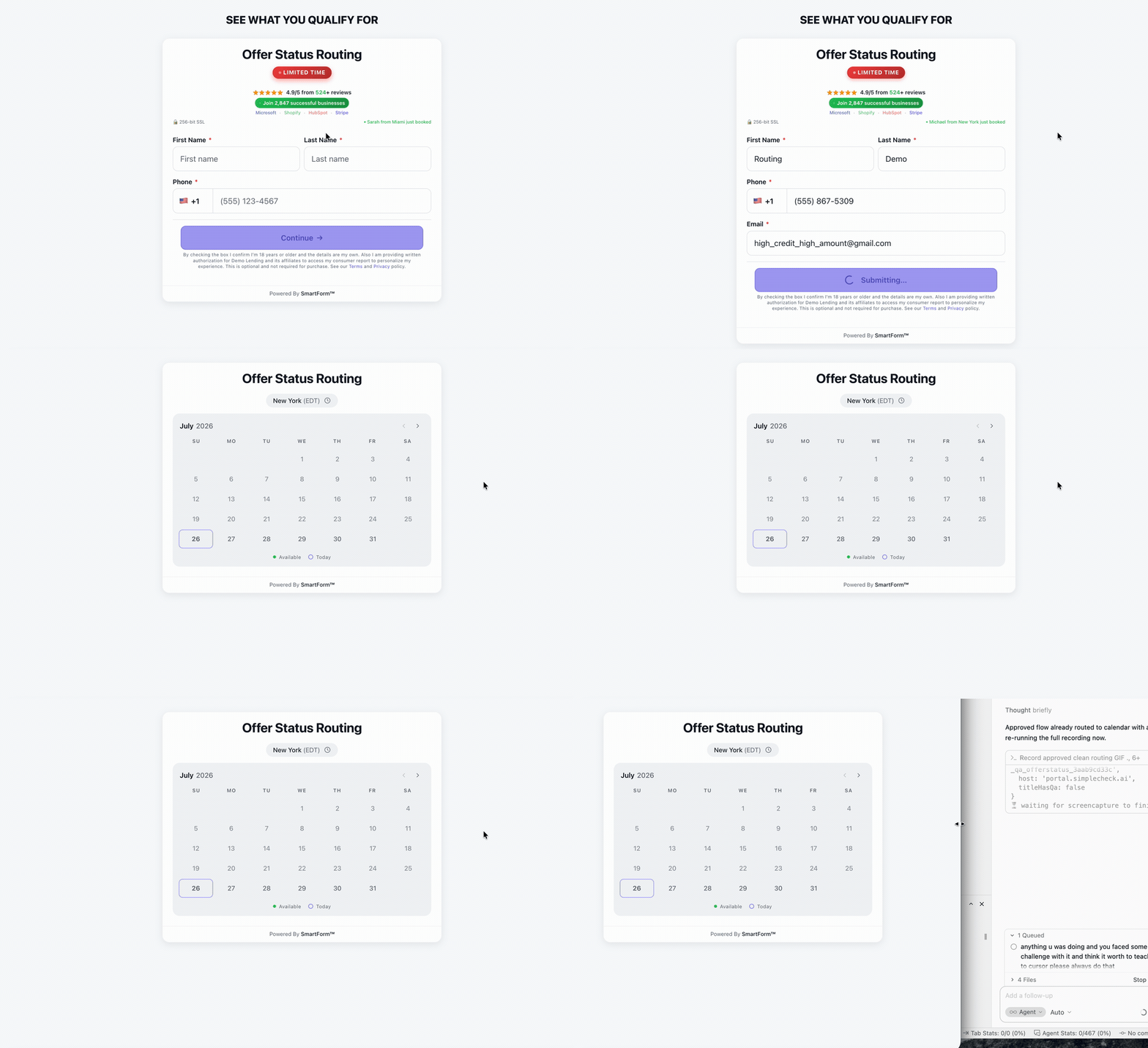
Approved path: the lead submits, Offer Status matches Approved, and the calendar opens immediately.
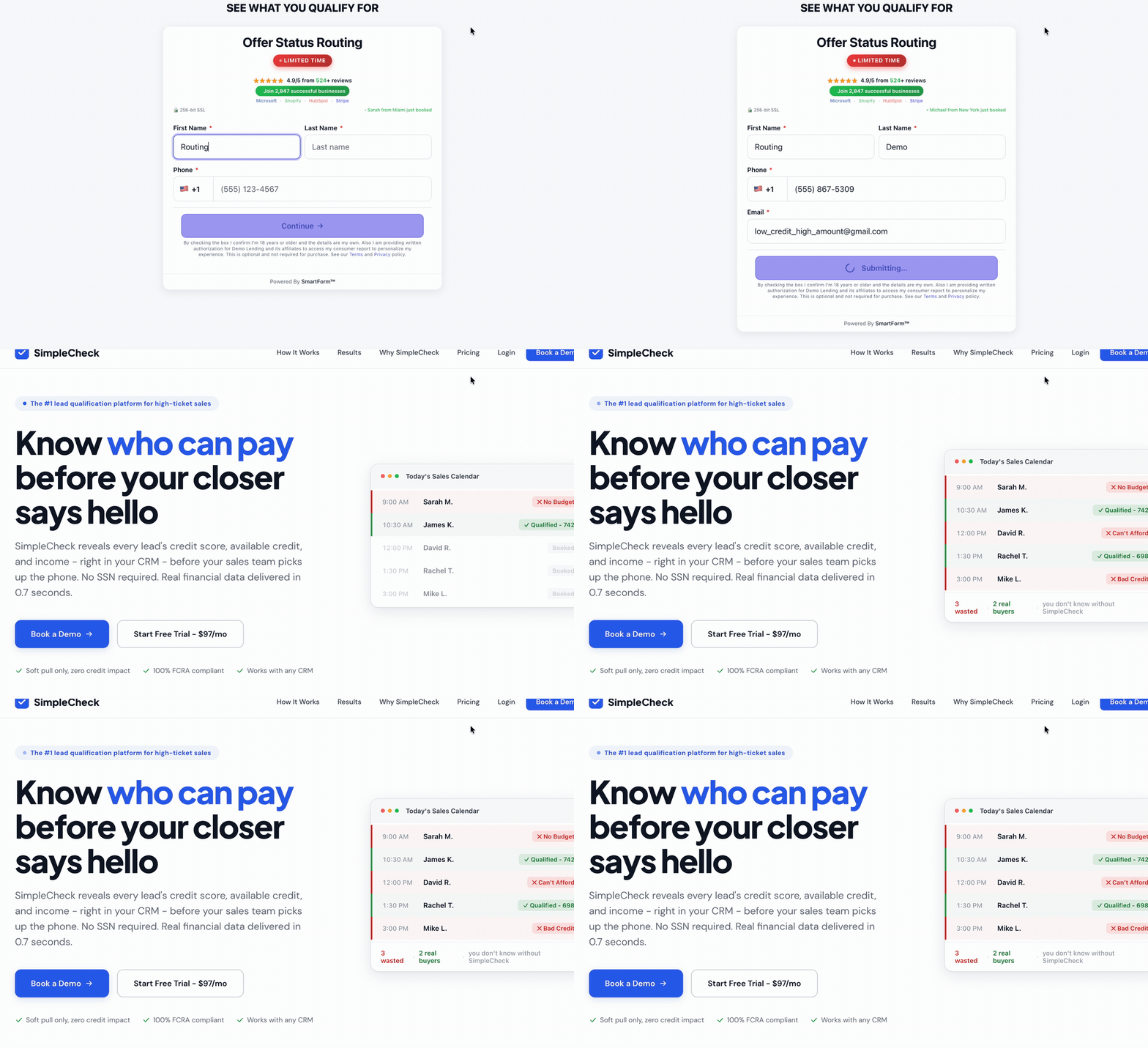
Declined path: the same form, a Declined Offer Status match, and a redirect to a different offer instead of the calendar.
That split is the whole point of routing on Offer Status instead of score alone: a declined lead can still carry a usable score, so only the explicit outcome field keeps them off your calendar.
Example Routing Plan
Use this as a starting shape, not as recommended thresholds — the right numbers depend on your offer, your price point, and your own conversion data.
- Approved outcome → show the calendar and assign your closing Calendar Team.
- Strong capacity → show the calendar, optionally routing to a different team by spendable credit.
- Declined outcome → redirect to a free training, content offer, or nurture path.
- Credit file frozen → show a message explaining how to unfreeze and resubmit. These are not lost leads.
- Very high capacity → optionally allow double booking so you never turn away your best lead.
- No score or failed check → a deliberate default action, never a blank state.
Ordering matters here: put the explicit Offer Status rules above your numeric ones. A declined lead can still show a usable score, so a score-only rule sitting on top will happily send them to your calendar.
That last path matters most, and it is the one teams skip. A pull can fail or return no match for entirely legitimate reasons, and a lead with no data is not the same as a lead who was declined.

A redirect rule can pass form data through as query parameters, and a dedicated rule using is not available catches leads whose pull returned no score.
Build the no-score rule explicitly with is not available, and keep the Default Action configured underneath it as a final catch-all. Between them, no lead ever reaches a blank state.
For a fuller starting configuration, see Recommended Smart Routing Settings.
What This Replaces
Credit-based routing consolidates work that usually lives in several places:
- Manual screening calls — capacity is known before anyone picks up the phone.
- Separate landing pages per audience segment — one form serves every segment and branches itself.
- Post-call disqualification — your calendar fills with people who fit, so fewer slots get written off.
- Guesswork about lead quality — routing decisions are recorded per submission and visible in the portal.
You can review what actually happened per lead in Bookings & Leads, including delivery status to your CRM and calendar.

Every routed submission is searchable in Bookings & Leads with its CRM and calendar delivery status.
Responsible Use
Routing changes the customer experience. It does not, by itself, make a workflow legally compliant.
- Your business remains responsible for disclosures, eligibility logic, fair-treatment obligations, and follow-up.
- Do not present a routing outcome to a lead as a credit decision, an approval, or a denial.
- Do not invent a score when a pull returns nothing — route the no-data case deliberately.
- Test every path with representative data before you send paid traffic into it.
See FCRA Compliance and Data Security for how SmartForm handles notification questions and lead data.
Troubleshooting
The wrong action runs
Check rule order first. A broad condition placed above a narrow one will absorb leads meant for the narrower rule. Then confirm your operators and thresholds.
Credit conditions never evaluate
Confirm X-Ray Vision is active on the widget and that your test produced a successful report. Without a match, only non-credit conditions and your fallback can apply.
Every lead lands on the fallback
This usually means the pull is returning no financial data, so numeric conditions are all skipped. Add a rule using is not available to confirm that is what is happening, then check the report result.
Declined leads still reach the calendar
A declined lead can still carry a usable credit score, so a score-based rule placed above your Offer Status rule will match them first. Move the Offer Status rule up.
Nothing matches on an asset rule
Asset values are often unavailable even on a successful pull. Verify with an is not available rule on that field before building a path that depends on it.
The calendar or team is missing from the action
An Open calendar action needs a booking widget selected. For team targeting, open Team Setup, assign calendar members, and create the teams first — a rule cannot select a team that does not exist.
Leads are saved but nothing routes
Routing must be requested by the submission. If you are posting from a custom integration rather than the SmartForm widget, confirm the routing flag is included — see Keep Your Own Form.
A report failed for a real person
Failed pulls happen. Review Troubleshooting: Why a Report Might Fail and make sure your no-score path is a useful experience.
Next Steps
- Open your widget in Widgets, go to Widget Setup, then click Go to Smart Routing.
- Build two rules first: your qualified path, and a no-score path using is not available. Those two cover most traffic.
- Submit test leads for each path and confirm the action in Bookings & Leads.
- Add your calendar teams and the double-booking rule once the basic split works.
- Layer on tracking with Pixel Wiring Studio so Meta learns from the leads that actually qualified.
If a routing decision still does not match your rules, contact support through the portal with the widget name, the submission time, and the path you expected.
Updated on: 26/07/2026
Thank you!