
How to Embed SmartForm on Framer
Before You Start: Getting Your Embed Code
Your embed code is available inside the SmartForm portal. You do not need to contact SimpleCheck to get it.
Log in to your SmartForm account and complete the setup wizard (Team, Design, Routing). On Step 4: Launch, you'll see "Your widget is live!" along with your embed code and a "Copy Code" button. Click it, and you're ready to paste it into your website using the instructions below.
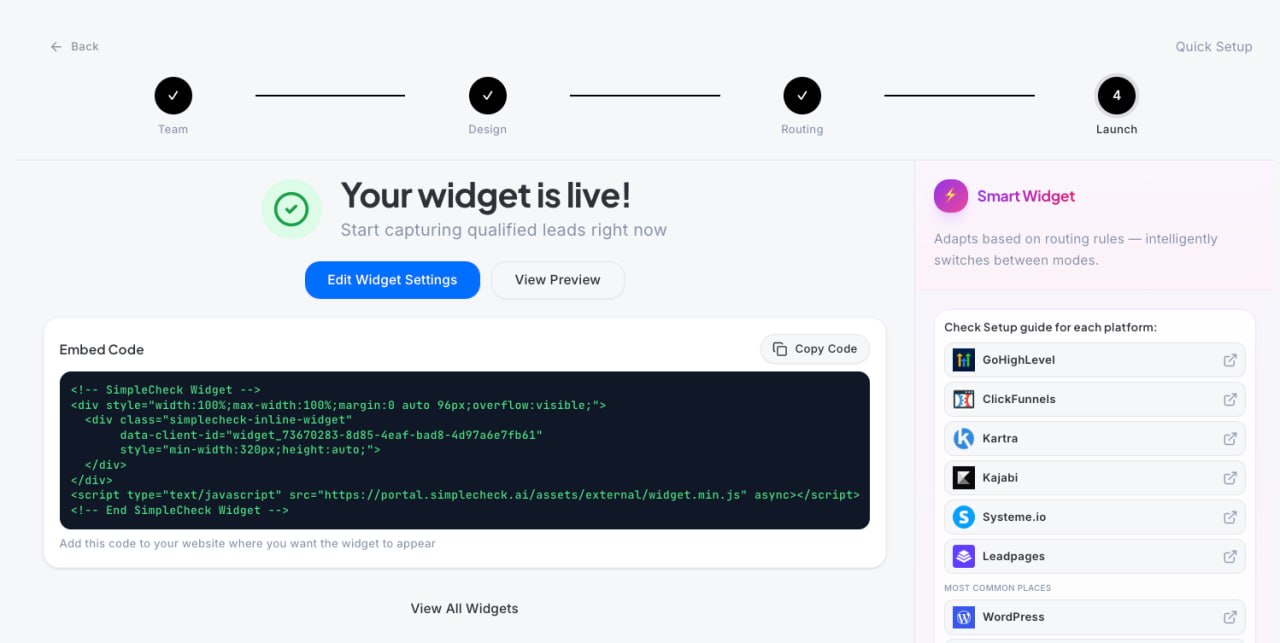
SmartForm Portal: On the Launch step, your embed code is displayed with a "Copy Code" button. The right sidebar also links directly to setup guides for each platform.
Example Embed Code
<!-- SimpleCheck Widget -->
<div style="width:100%;max-width:100%;margin:0 auto 96px;overflow:visible;">
  <div class="simplecheck-inline-widget"
       data-client-id="widget_YOUR-UNIQUE-ID-HERE"
       style="min-width:320px;height:auto;">
  </div>
</div>
<script type="text/javascript"
  src="https://portal.simplecheck.ai/assets/external/widget.min.js"
  async></script>
<!-- End SimpleCheck Widget -->
You don't need to change anything in the code. Just copy the entire block exactly as shown on your Launch page and paste it where the instructions below tell you to.
What the widget does: Once embedded, the SimpleCheck SmartForm will appear on your page. It loads automatically and adjusts to fit the width of whatever section you place it in.
Important: Remove the container styling. After pasting the code, make sure the block or element that holds it has no background color, no padding, and no border. The widget IS the content. You don't want a white box or frame around it.
Set the container/element to: Background: transparent (or none), Padding: 0, Border: none. If the platform uses a modal or popup wrapper, apply the same settings to that wrapper.
Where to place SmartForm on your page: SmartForm should replace your existing lead capture form. Place it at the top of your funnel, where you first collect a visitor's information. SmartForm qualifies the lead, then routes qualified prospects to your calendar or next step automatically.
How to Embed SmartForm on Framer
Difficulty: Medium
Framer uses an Embed component for custom HTML code. Insert it from the menu, then paste your code into the HTML field.
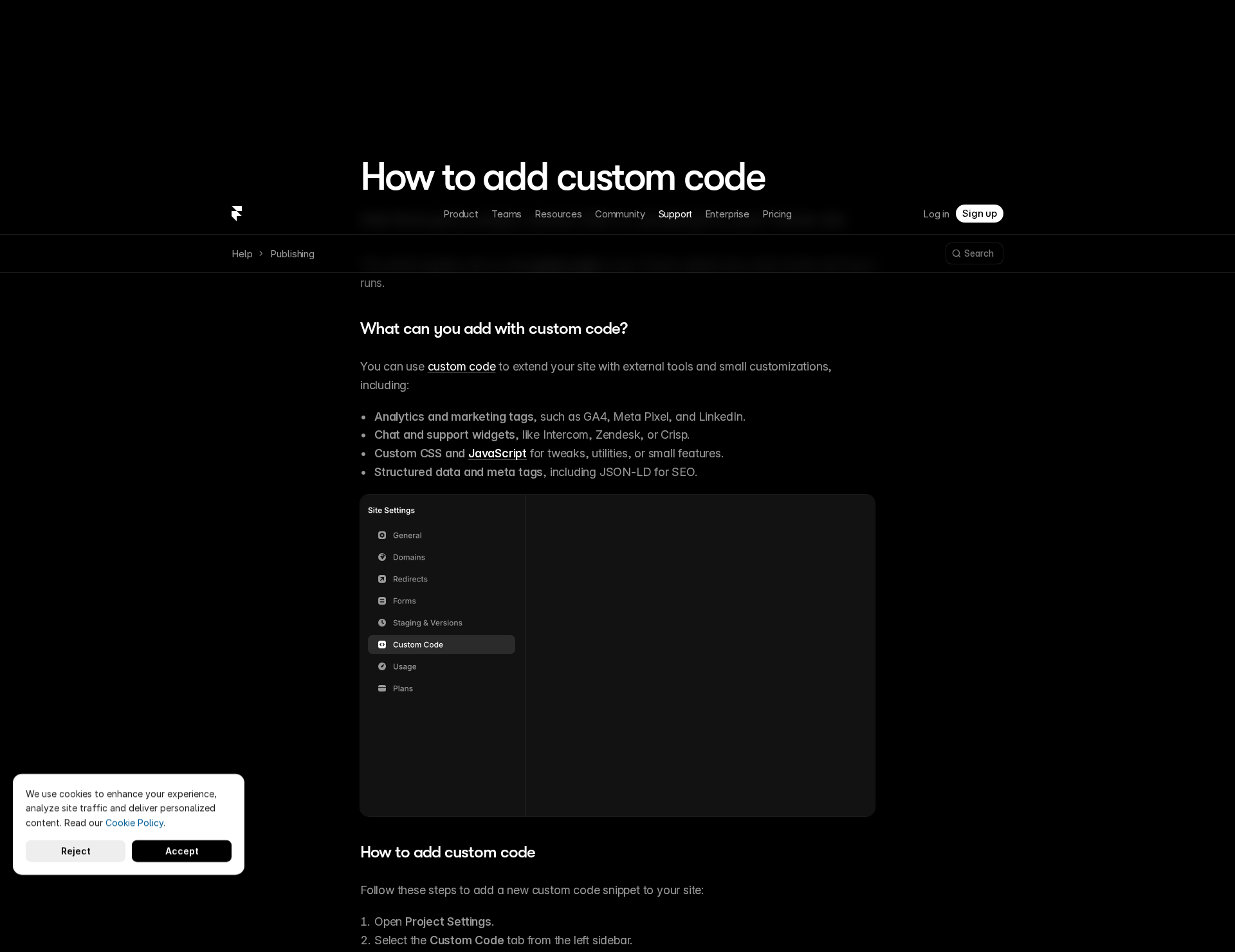
Framer supports custom HTML through the Embed component
Steps
- Open your project in the Framer editor.
- Open the Insert menu (click + or press / on your keyboard).
- Search for "Embed" and select the Embed component.
- Drag or place the Embed component where you want the widget to appear.
- Click on the Embed component. In the right panel, find the HTML section.
- Paste your entire SimpleCheck embed code into the HTML field.
- Resize the Embed component to be at least 350px wide. Set the height to at least 600px.
- Click Publish to push changes live. The widget will only appear on the published version.
Quick path: Framer Editor > + Insert > Embed > Paste Code > Resize > Publish
Important: You must manually resize the Embed component. Set it to at least 350px wide and 600px tall for the widget to display properly.
Note: Framer embed components run in an isolated scope. Your site's fonts and colors won't affect the widget (this is fine, the widget has its own styling).
Make the container transparent. Click on the HTML/code element and set Background to transparent/none, Padding to 0, and Border to none.
Troubleshooting
The widget isn't showing up
Most common cause: You're looking at the editor preview, not the live page. Most platforms don't render custom scripts in the editor. Publish the page and view it in a new browser tab.
There's a white box or border around the widget
The container element has its own background, padding, or border. Click the HTML/code block in your page editor and set Background: transparent (or none), Padding: 0, and Border: none. The widget provides its own styling.
The widget appears but looks cut off
Make sure the embed element/block is wide enough (at least 350px). You may need to manually resize the embed container by dragging its corners.
The widget loads on desktop but not mobile
Check that the embed container is set to 100% width (not a fixed pixel width). The SimpleCheck widget is responsive and will adapt to any container width 320px or wider.
I see two widgets on the page
You may have pasted the code twice. Go back to the code editor and make sure there's only one copy of the embed code. Also check that you don't have the code in both a page block AND a site-wide code injection setting.
Still Having Trouble?
If the widget still isn't loading after following these steps:
- Double-check your embed code by going back to SmartForm > Step 4: Launch and copying it fresh.
- Try a different browser to rule out caching or extensions interfering.
- Contact support through the chat widget in the bottom-right corner of the SmartForm portal, or email support@simplecheck.ai.
Updated on: 08/04/2026
Thank you!