> ## Knowledge Base Index
> Fetch the complete knowledge base index at: https://help.simplecheck.com/sitemap.xml
> Use this file to discover available pages before exploring further.
> Pure-Markdown content can be obtained by appending a '.md' suffix to the content URLs listed in the sitemap (without the trailing slash).
# How to Embed SmartForm on ClickFunnels
## Before You Start: Getting Your Embed Code
Your embed code is available inside the **SmartForm portal**. You do not need to contact SimpleCheck to get it.
Log in to your SmartForm account and complete the setup wizard (Team, Design, Routing). On **Step 4: Launch**, you'll see "Your widget is live!" along with your embed code and a **"Copy Code"** button. Click it, and you're ready to paste it into your website using the instructions below.
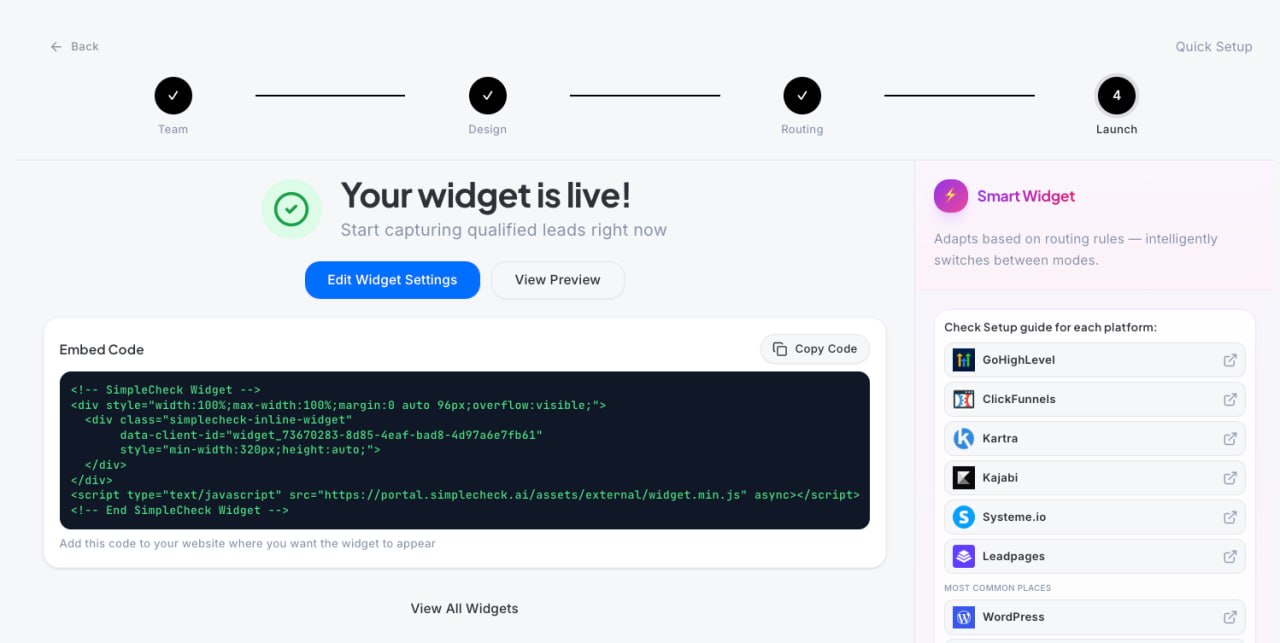
*SmartForm Portal: On the Launch step, your embed code is displayed with a "Copy Code" button. The right sidebar also links directly to setup guides for each platform.*
### Example Embed Code
```html
```
> **You don't need to change anything in the code.** Just copy the entire block exactly as shown on your Launch page and paste it where the instructions below tell you to.
> **What the widget does:** Once embedded, the SimpleCheck SmartForm will appear on your page. It loads automatically and adjusts to fit the width of whatever section you place it in.
> **Important: Remove the container styling.** After pasting the code, make sure the block or element that holds it has **no background color, no padding, and no border**. The widget IS the content. You don't want a white box or frame around it.
Set the container/element to: **Background: transparent (or none)**, **Padding: 0**, **Border: none**. If the platform uses a modal or popup wrapper, apply the same settings to that wrapper.
> **Where to place SmartForm on your page:** SmartForm should replace your existing lead capture form. Place it at the top of your funnel, where you first collect a visitor's information. SmartForm qualifies the lead, then routes qualified prospects to your calendar or next step automatically.
---
## How to Embed SmartForm on ClickFunnels
**Difficulty: Easy**
ClickFunnels lets you embed custom code using the **HTML/JS** element found in the **Miscellaneous (MISC)** category of the element picker.
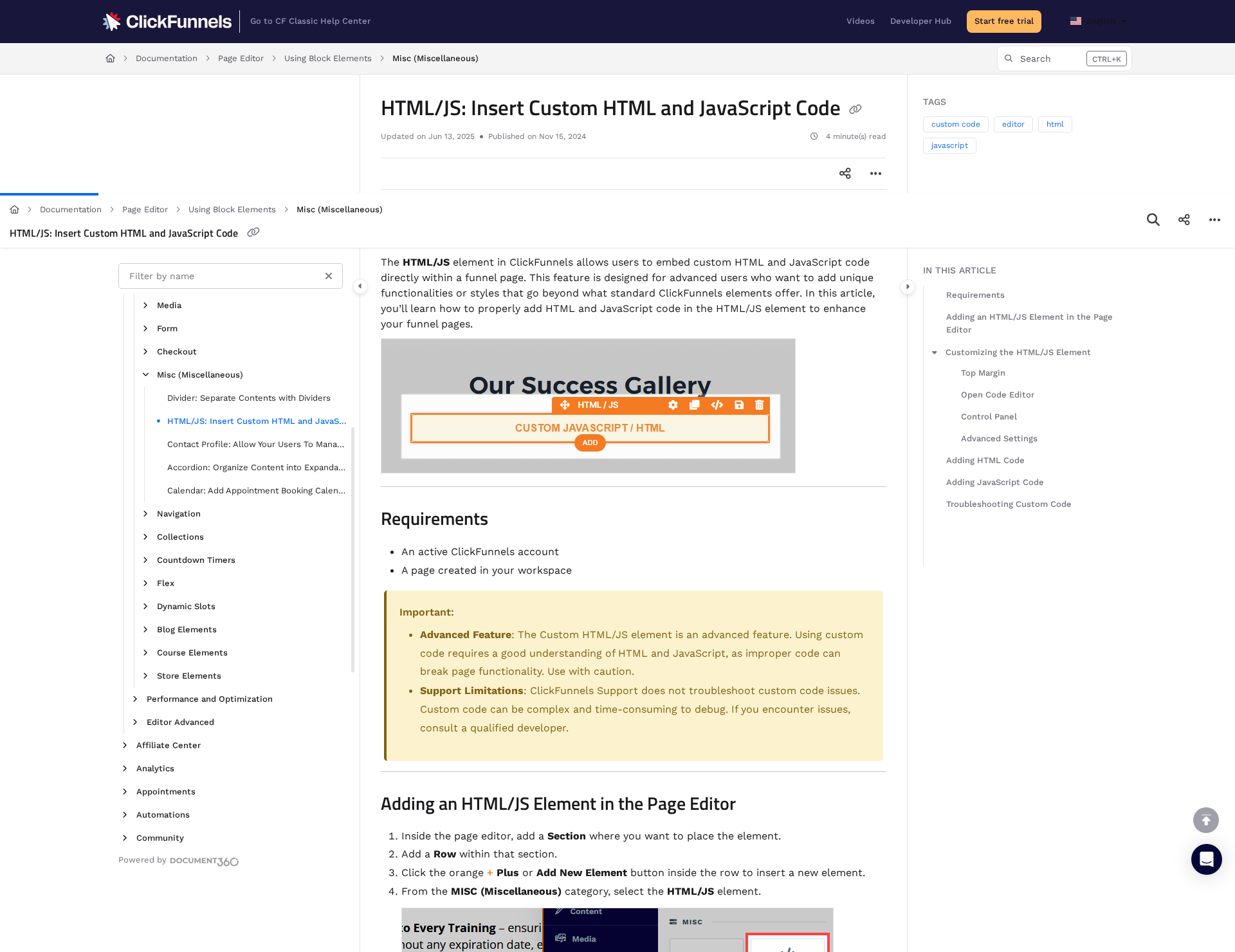
*From ClickFunnels: Adding custom code via the HTML/JS element*
### Steps
1. Open your funnel and navigate to the **page editor** for the page where you want to add SmartForm.
2. Click the **+ Add Element** button inside the row where you want the widget to appear.
3. In the element picker, scroll to the **MISC (Miscellaneous)** category.
4. Select the **HTML/JS** element and drag it into your page.
5. Click the **gear icon (Settings)** on the HTML/JS element.
6. Click **"Open Code Editor"** to open the code input area.
7. **Paste your entire SimpleCheck embed code** into the code editor.
8. Close the editor, then click **Save** and **Preview** to verify the widget loads.
**Quick path:** Page Editor > + Add Element > MISC > HTML/JS > Settings (gear) > Open Code Editor > Paste & Save
> **The widget may not render inside the ClickFunnels editor.** This is normal. Custom scripts often don't execute in the editor preview. Click **Preview** or **Publish** to see the widget live.
> **Make the container transparent.** Click on the HTML/code element and set Background to transparent/none, Padding to 0, and Border to none.
---
## Troubleshooting
### The widget isn't showing up
Most common cause: You're looking at the editor preview, not the live page. Most platforms don't render custom scripts in the editor. **Publish the page and view it in a new browser tab.**
### There's a white box or border around the widget
The container element has its own background, padding, or border. Click the HTML/code block in your page editor and set **Background: transparent** (or none), **Padding: 0**, and **Border: none**. The widget provides its own styling.
### The widget appears but looks cut off
Make sure the embed element/block is **wide enough** (at least 350px). You may need to manually resize the embed container by dragging its corners.
### The widget loads on desktop but not mobile
Check that the embed container is set to **100% width** (not a fixed pixel width). The SimpleCheck widget is responsive and will adapt to any container width 320px or wider.
### I see two widgets on the page
You may have pasted the code twice. Go back to the code editor and make sure there's only **one copy** of the embed code. Also check that you don't have the code in both a page block AND a site-wide code injection setting.
---
## Still Having Trouble?
If the widget still isn't loading after following these steps:
1. **Double-check your embed code** by going back to SmartForm > Step 4: Launch and copying it fresh.
2. **Try a different browser** to rule out caching or extensions interfering.
3. **Contact support** through the chat widget in the bottom-right corner of the SmartForm portal, or email **support@simplecheck.ai**.